Asking for changes
How to send an image back with a note, and what to do about films, floor plans and work that needs a person.
Updated 19 October 2026
Send an image back
- Open the job's album.
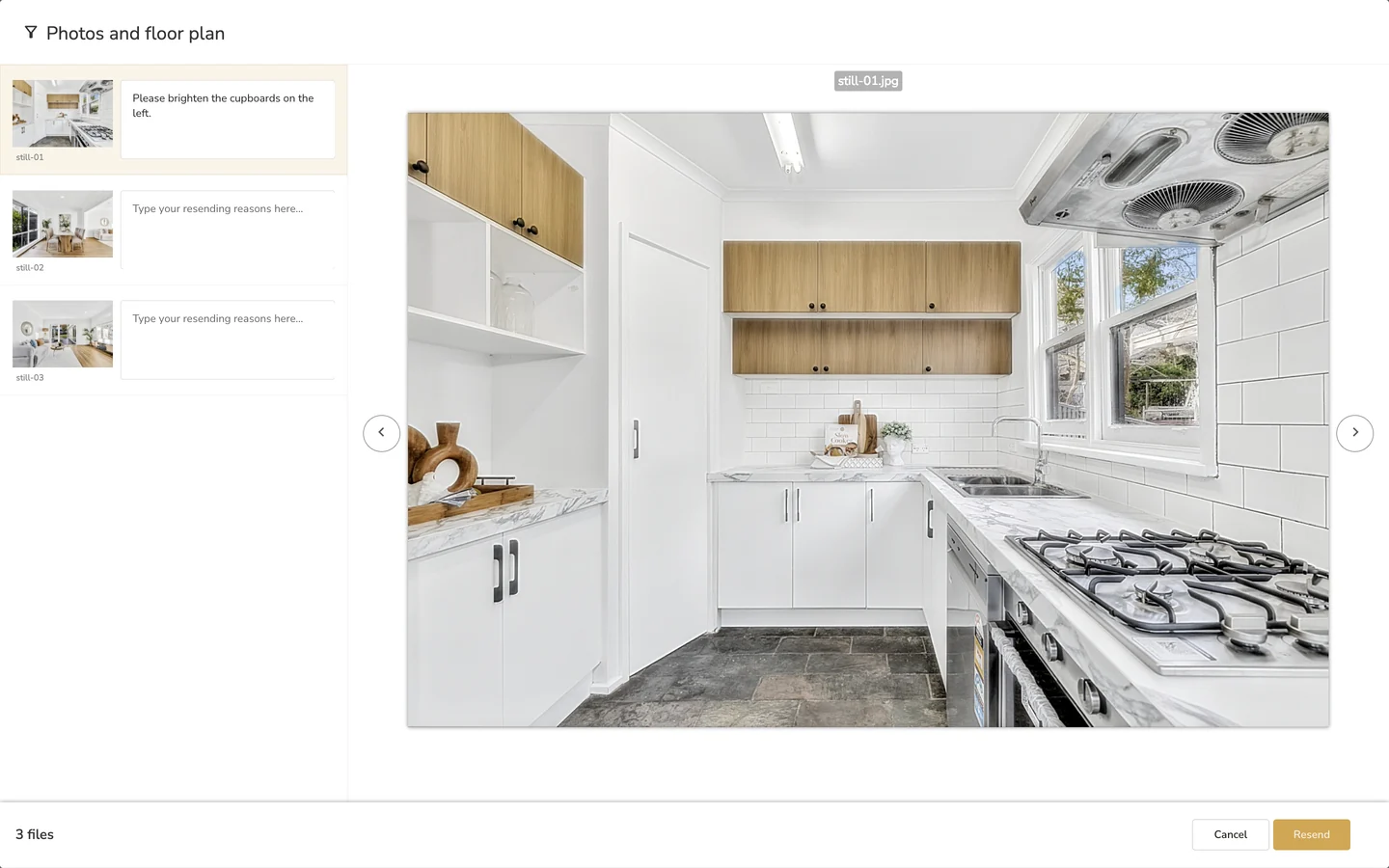
- Click an image. It opens in the review window, with every image in the service listed down the left.
- In the box beside each image you want changed, type what you need.
- Click Resend. Cancel closes the window without sending anything.
An update is sent as a new request and treated as a new project.
Work that needs a person
Create and Grow plans are AI editing. Bespoke human editing of images and video is part of the Enterprise plan. Talk to us if you need it.
Floor plans and films
These go onto the job as you upload them, so change the file and upload it again: open the album's menu (the three dots beside Download Service) and choose Update Service. Floor plans stay fully editable in LUXplan.
Common questions
Can I send back several images at once?
Yes. Type a note beside each one, then click Resend once.
Can I get a person to edit my images?
Yes, on the Enterprise plan, which includes bespoke human editing of images and video.
More in shoots and production
Still need a hand?
Email hello@luxengine.com and tell us what you were trying to do.