

Setting up your clients and products
Add the agencies and agents you work for, and the products you sell, before your first job.
Updated 19 October 2026
Set these up once and every job after that takes a few clicks. Your clients live under the people icon at the top of the left-hand menu; products have their own page.
Add an agency
An agency is a client. Builders, architects and any other kind of client can be set up as an agency too.
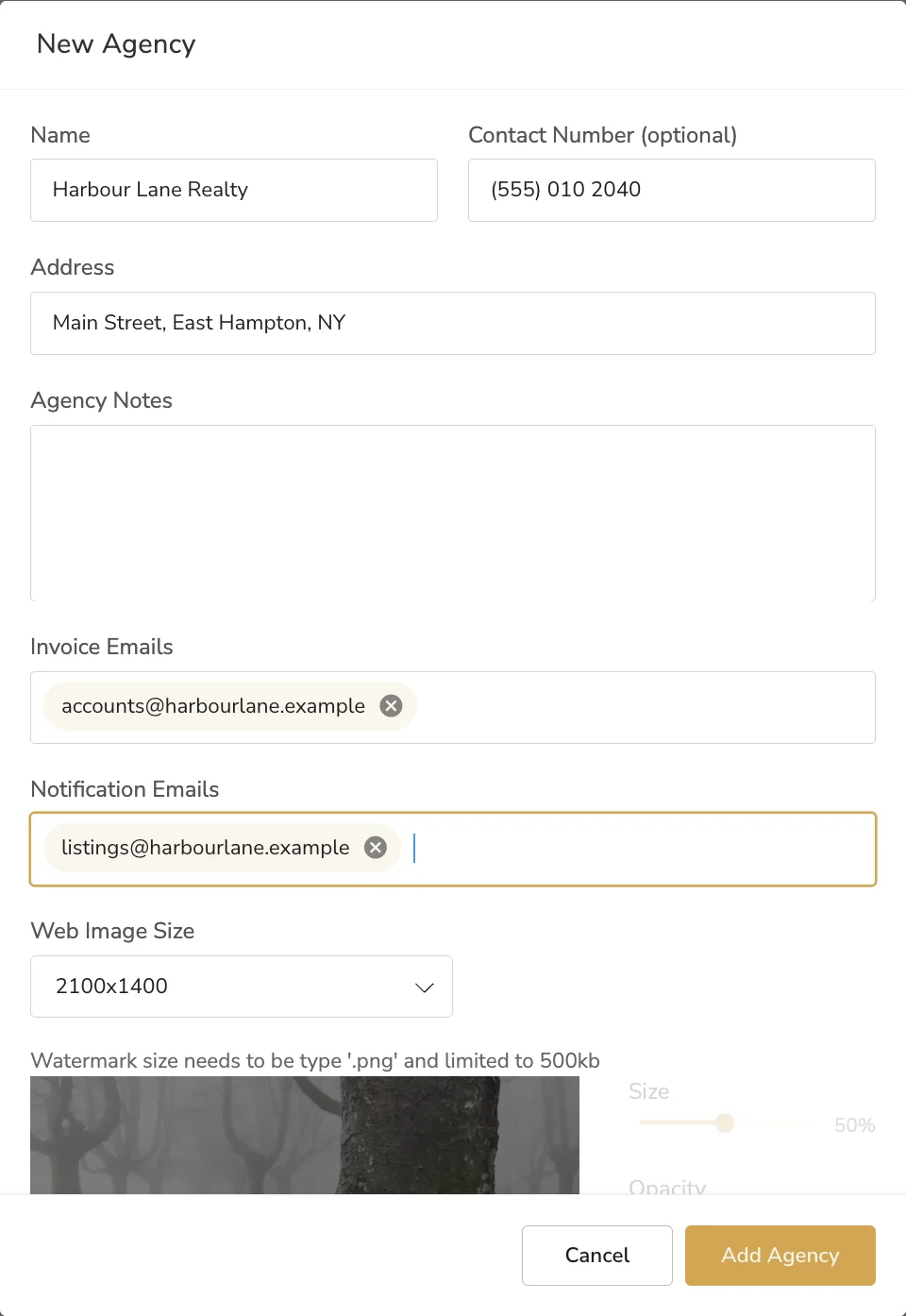
- Click the people icon, then Agencies, then New Agency.
- Enter the agency's name, a contact number if you like, and its address.
- On the Enterprise plan, which gives you our team of human editors alongside Zero Touch, put standing instructions for the editors under Agency Notes. On Create and Grow, which are AI editing, leave it empty.
- Add the email addresses that invoices go to under Invoice Emails, and the ones that hear about finished work under Notification Emails. Press Enter after each address; each field takes as many as you need.
- Choose the Web Image Size. It starts at 2100 x 1400, and you can set your own width and height at 3:2 or 4:3.
- To watermark web images, drop the agency's logo into the watermark box. It must be a PNG of 500 KB or less. Set its size, opacity and position with the sliders.
- Click Add Agency.
Add an agent
Agents are optional, and each one belongs to an agency you have already added. Agents do not sign in to LUXengine: they see the delivered images in the albums you share with them.
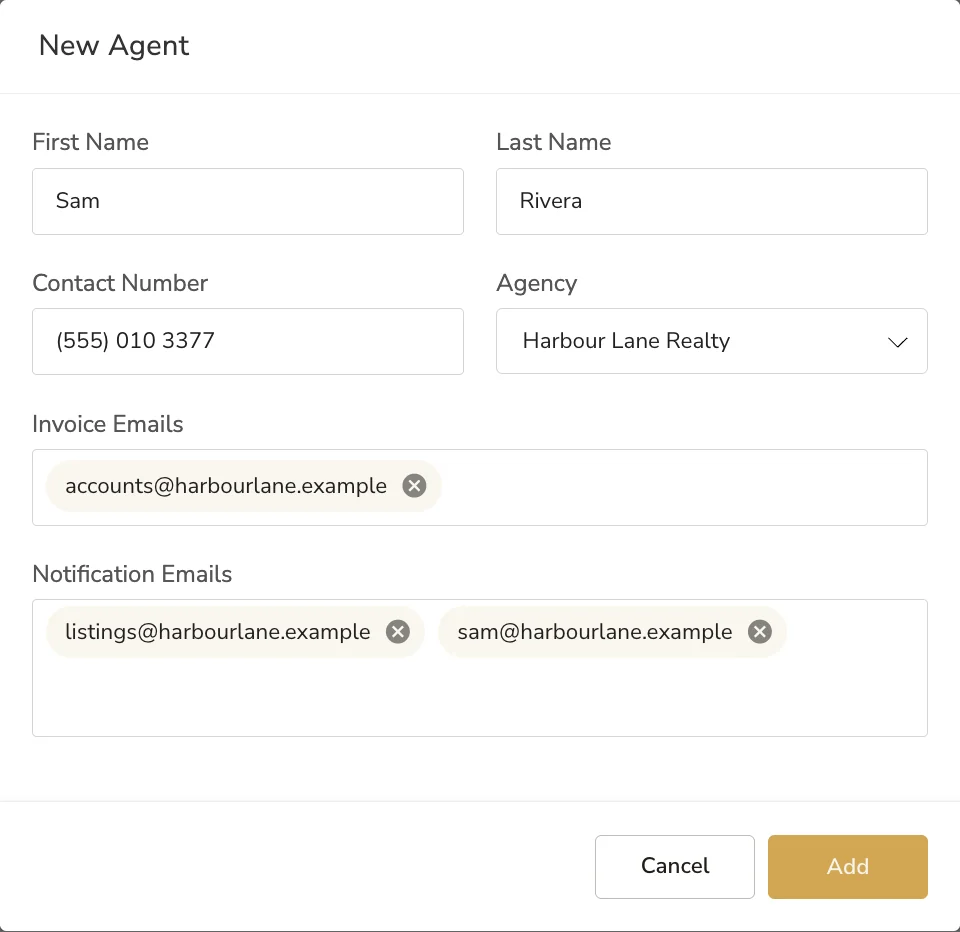
- Click the people icon, then Agents, then New Agent.
- Enter the agent's first and last name and contact number, and pick their agency.
- The agency's invoice and notification emails fill in. Add the agent's own address, or change them if this agent is billed or notified differently.
- Click Add.
Create a product
A product is something you sell, such as "Photos" or "Photos and floor plan". It holds two things: the LUXengine services the work needs, and the lines that go on your invoice. Each service opens its own uploader when the product goes on a job.
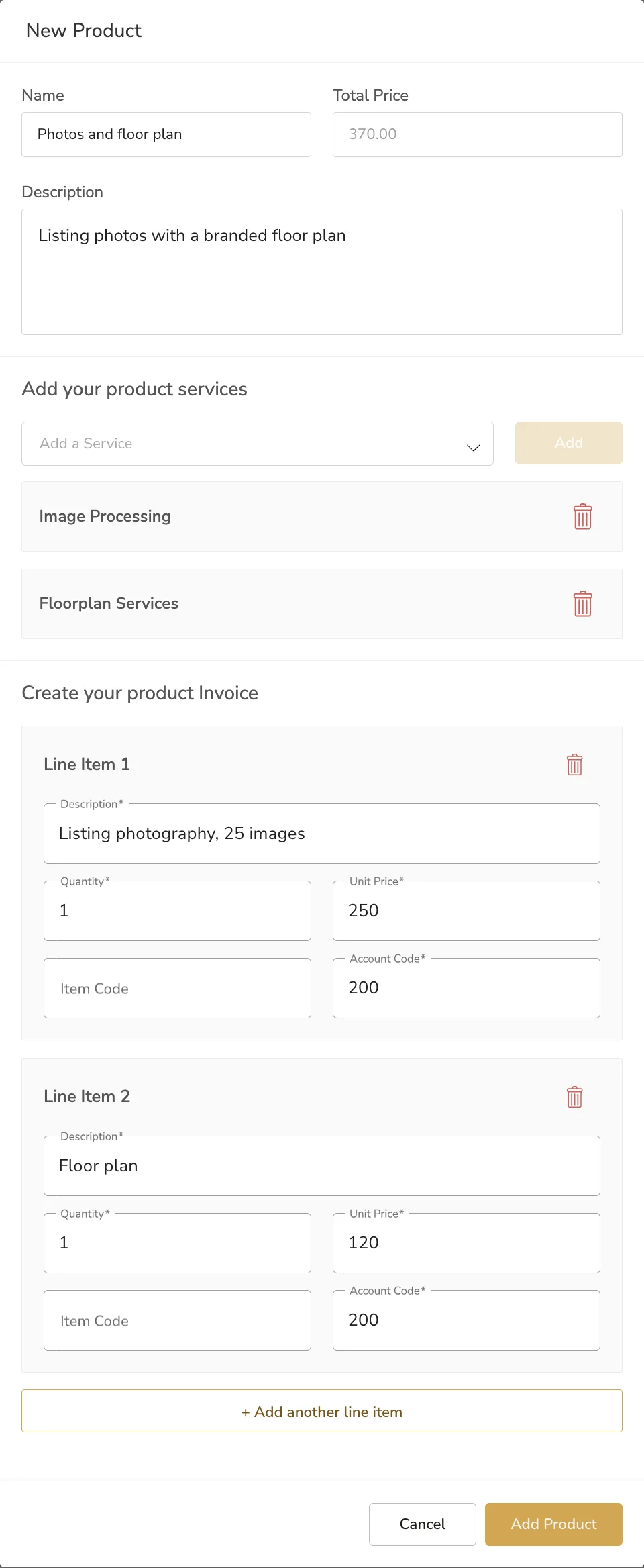
- Go to Products and click New Product.
- Name it, and add a description if you like. Your clients see the name on the job.
- Under Add your product services, pick a service and click Add. Repeat for each one: Image Processing, Video Services or Floorplan Services.
- Under Create your product Invoice, fill in a line for each thing you charge for: the description, quantity, unit price and the Xero sales account code it belongs to. The account code is required: if you do not know yours, use 200, Xero's standard Sales account. The item code is optional. Click Add another line item for more.
- The total price adds itself up. Click Add Product.
Common questions
Do I have to add an agent to every job?
No. Agents are optional.
Can my agents sign in to LUXengine?
No. Agents see the delivered images in the albums you share with them.
What are Agency Notes for?
Standing instructions for our human editors, on the Enterprise plan. Create and Grow are AI editing, so leave Agency Notes empty.
Can a client be something other than a real estate agency?
Yes. Builders, architects and any other client can be set up as an agency.
What is the account code for?
It tells Xero which sales account an invoice line belongs to. Separate accounts for photos, video and floor plans show you where your money comes from.
What account code do I use if I do not know mine?
Use 200, Xero's standard Sales account. Every line needs one.
What file can I use as a watermark?
A PNG of 500 KB or less.
More in getting started
Still need a hand?
Email hello@luxengine.com and tell us what you were trying to do.