

Invoicing your clients
Turn a job into an invoice from its products, send it through Xero, and find invoices waiting to sync.
Updated 19 October 2026
Each job's invoice is drafted from the products on it, so in most cases it is ready as soon as the work is.
What you need
Invoices are sent through Xero, so you need your own Xero subscription, connected to LUXengine. The Xero button at the top right of the dashboard shows a red dot until you are connected.
Create an invoice
The Not Invoiced count on the Jobs page tells you how many jobs still need one. Each job's $ icon is gold until the job is invoiced, then turns grey.
- Click the $ icon on the job, in the Jobs list or at the top of the job page.
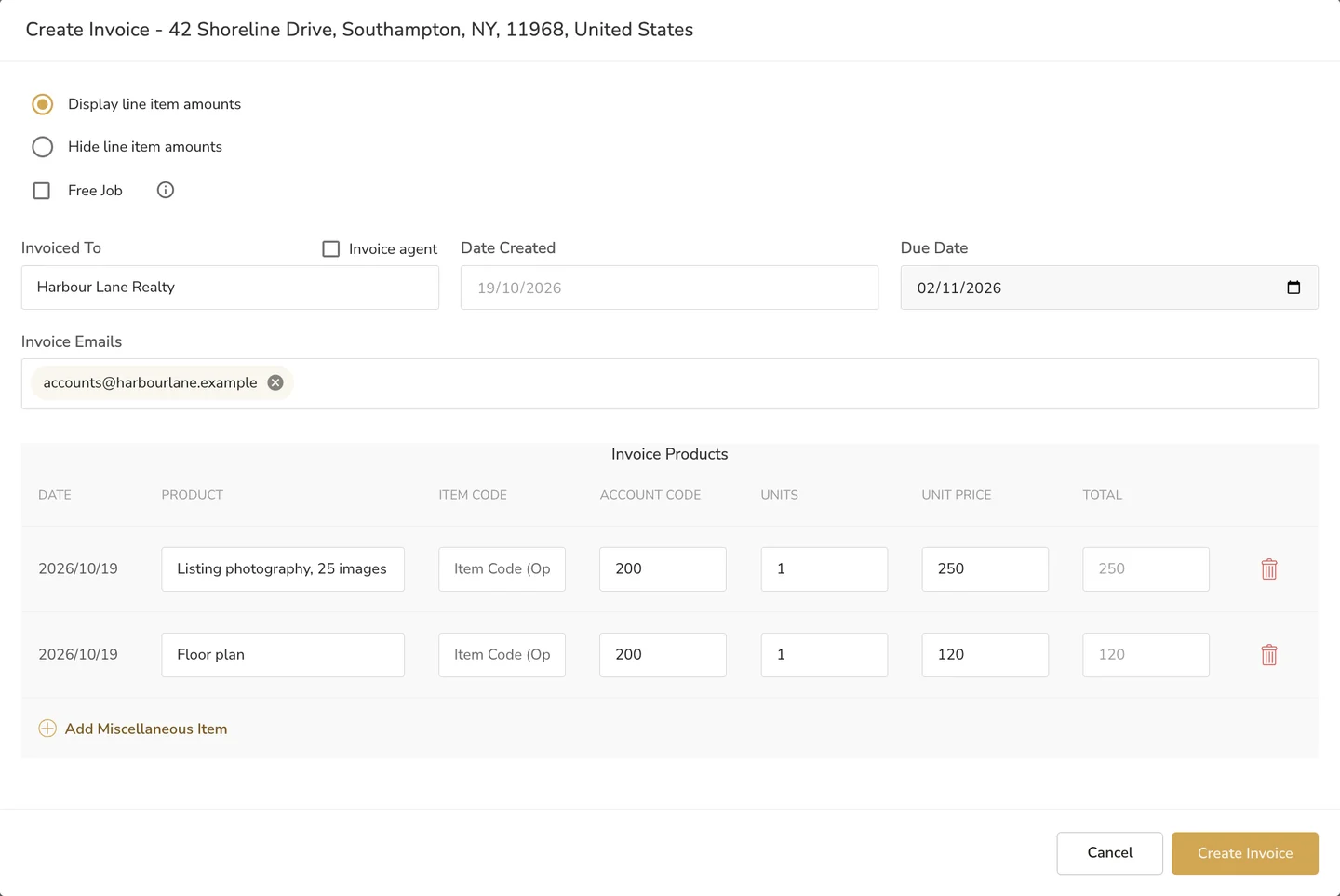
- The Create Invoice window fills in from the job: the agency under Invoiced To, its invoice emails, and a line for each product line.
- Check the lines. Change any of them, delete one with the bin icon, or click Add Miscellaneous Item for something extra. Every line needs a sales account code: use 200, Xero's standard Sales account, if you do not know yours.
- Choose a Due Date.
- Click Create Invoice.
Useful options
- Hide line item amounts shows only the total. Handy for a package with discounts on some items.
- Invoice agent bills the agent on the job rather than the agency.
- Add more addresses under Invoice Emails to send the invoice to several people.
Send it through Xero
New invoices wait under Invoices, on the Unsynced tab, marked Awaiting Sync. Nothing reaches your client until you connect to Xero: click the Xero button and follow Xero's prompts. Once synced, invoices move to the Synced tab.

To change an invoice before it syncs, click its pencil icon in the Update column. The bin icon cancels it.
Common questions
Do I need my own Xero account?
Yes. Invoices are sent through your Xero.
Can I send an invoice to more than one address?
Yes. Add as many addresses as you need under Invoice Emails.
Can I bill the agent instead of the agency?
Yes. Tick Invoice agent in the Create Invoice window.
More in delivery and invoicing
Still need a hand?
Email hello@luxengine.com and tell us what you were trying to do.